SMS Opt-In & Consent
How users consent to receive text messages from YourKitchen.
YourKitchen LLC operates a meal coordination platform. This page is the complete, publicly accessible record of our SMS program: how end users provide express written consent, the exact disclosures shown at the point of opt-in, and a screenshot of the actual consent screen. No login is required to review any of this information.
How users opt in
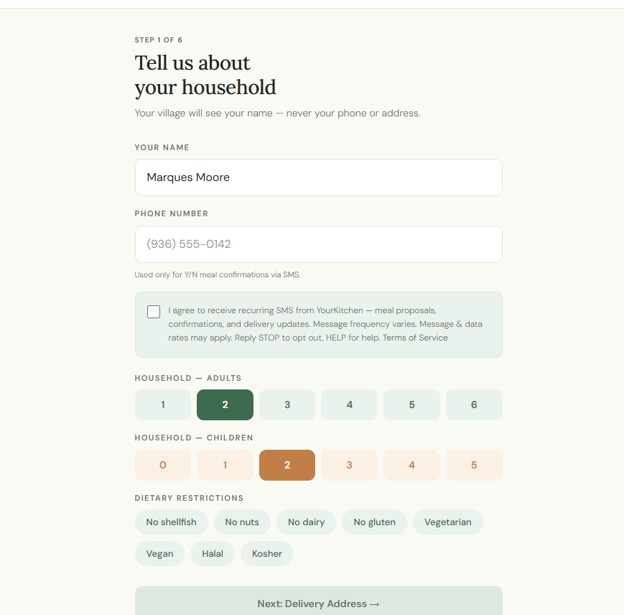
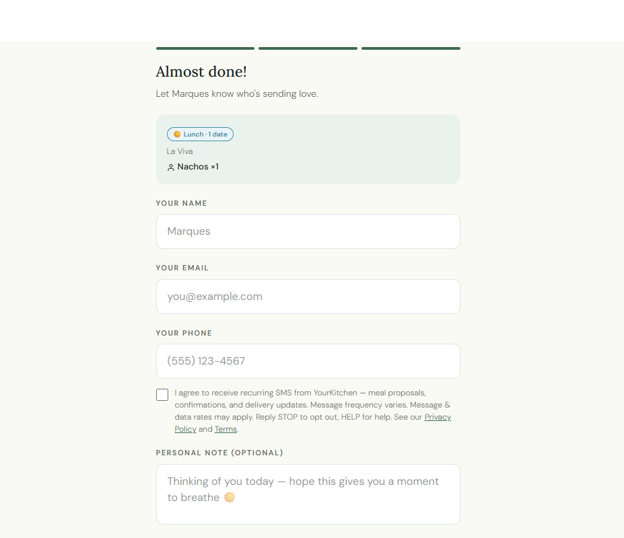
YourKitchen collects SMS consent through two opt-in paths, depending on whether the person is a meal recipient or someone sending a meal (a coordinator). In both, the consent checkbox is unchecked by default, must be actively checked, and the action button stays disabled until it is. Consent is never pre-checked or assumed. The screenshots below show exactly what each user sees.
1. Recipient opt-in (account signup)
When a recipient creates their YourKitchen account, the first step of onboarding presents a phone-number field and the SMS consent checkbox shown here:
2. Coordinator opt-in (sending a meal)
When someone sends a meal to a recipient, the final checkout step presents their phone-number field and the same SMS consent checkbox shown here:
The opt-in steps
Both paths follow the same pattern:
What messages we send
- Meal proposals — when someone wants to send the user a meal, requiring a Y/N reply to confirm.
- Confirmations — when a meal is confirmed and dispatched.
- Delivery updates — when a meal is on the way or delivered.
Message frequency varies based on how often the user receives meal offers. These are transactional, conversational messages — not marketing.
Sample messages
Opt-out & help
Users can reply STOP at any time to immediately unsubscribe from all messages. Replying HELP returns support contact information. These keywords are honored automatically.
Consent is never shared
Mobile opt-in consent and phone numbers are never shared with third parties or affiliates for marketing purposes. Phone numbers are used solely to operate the YourKitchen meal coordination service.